
I had my first Chinese class on Friday, and it was fun. It was hard, but fun.

The class is being taught by Pan lǎoshī (潘老师), and he stresses the use of pinyin and hitting the proper tones (as I am sure most teachers do). The tones are key to speaking Chinese well, he says.

So I needed to find a way to type pinyin with the correct tone marks (so I can print stuff out, and to get used to placing them properly). Openvanilla.org (which is fantastic at typing pinyin to get the simplified characters) doesn’t support typing accent marks on romanized characters, but after a bit of digging I found that Mac OS X does it out of the box (why am I not surprised).

You simply have to enable the U.S. Extended keyboard instead of the standard U.S. one (assuming you are using a U.S. setup that is).

To enable it go into System Preferences then International then click on the Input Method tab. Scroll all the way down and enable the U.S. Extended keyboard set (as seen in the following image)
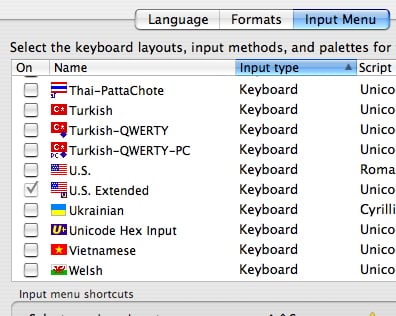
SystemPreferencesUSExtend

Once you have the U.S. Extended keyboard enabled you can use the following key strokes to do the accent marks:

  • Alt+a for the first tone - ā
  • Alt+e for the second tone - á
  • Alt+v for the third tone - ǎ
  • Alt+` for the forth tone - à
  • To type ü, type Alt+u then u
  • To type ü with tone marks, use the same Alt+[aev`] from above for the tone, then type v. For example, to type ǚ, type Alt+v then v - ǜ is Alt+` then v

If you find these hard to remember, you can open the keyboard viewer for a while until you get used to it. When you hit the Alt key you can see which accents will stick to the next character you type. Here is a picture of the Keyboard viewer open while I am holding down the alt (aka option) key:
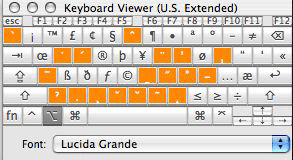
ScreenSnapzKeyBoard

Comments

This entry was posted on Saturday, February 3rd, 2007 at 8:34 pm and is filed under Chinese, General, Mac, Personal. You can follow any responses to this entry through the RSS 2.0 feed. You can leave a response, or trackback from your own site.

28 Comments so far

  1. b6s on February 4, 2007 11:41 pm

    Actually OpenVanilla supports Romanization writing systems in some… humm.. different way: Unicode-symbols (http://flickr.com/photos/b6s/21683819/) text entry module and a POJ-Holo a.k.a Taiwanese (http://flickr.com/photos/b6s/21678452/) text entry module.

    So, it means we should at least add an introduction of Unicode-symbol text entry module to the English version of user manual… :)

  2. rob on February 5, 2007 8:26 am

    Wow b6s, how did you get that first input method? I thought I tried every setting with OpenVanilla, and I didn’t see that - that’s exactly what I was looking for. While doing it with the alt keys is workable for a couple words, doing full sentences with it is kind of difficult.

  3. Pan Hai ( 潘海) on February 9, 2007 11:12 pm

    This a good way to do many things . It still takes me some time to study . Thank you very much.

    潘老师

  4. John on March 3, 2007 10:30 pm

    Good God I needed this. Thank you!

  5. Jay on April 3, 2007 4:19 pm

    Damn I have been needing this! Thank you soooo much!

    Spent hours with Mac help customer service, went all the way to the top - took months and they still couldnt figure it out.

    Is it possible to write in Pinyin using a Canadian keyboard?

  6. rob on April 4, 2007 7:14 am

    @Jay

    Try this:
    When in Preferences > International > Input Menu, make sure the “Show Input menu in menu bar” is ticked, and pick “Canadian” (or whatever layout you want try). You should then see a little flag on the top right of the screen near to the spotlight icon.

    Click the flag and choose “Show Keyboard Viewer”. With that open hold down the alt/option key and check if you see the tone marks (might also try alt+shift).

    (I just did a quick look and it looks like you can only do àá and ü with a Canadian keyboard. The good news is with that flag icon up in the corner it’s rather easy to switch layouts. I have mine set to ctrl+shift+space bar to switch)

  7. lesli on April 20, 2007 2:31 pm

    Thank you!!! I also just spent an hour with Apple tech help to no avail.
    However, when I first tried your method it only worked for the second & fourth tones. The others made gibberish:
    I had to disable the Chinese input method in ‘International’. Funny, when I now re-enabled the Chinese, the pinyin is still working.
    infinite mysteries…well, thanks again!

    Do you know if there is any way to keep the ‘U.S. extended’ icon up permanently? It keeps reverting to
    stars & stripes as I change windows, etc.

  8. rob on April 20, 2007 2:37 pm

    Lesli,

    I think the problem might be the setting:
    “Use one input source in all documents”

    in the International > Input Menu (at the bottom of the screen). Here is my setup for reference.

    http://robrohan.com/wp-content/uploads/2007/04/systemprefs001.jpg

    If you don’t have it set for “all”, each application will remember the original input method and switch you.

  9. lesli on April 25, 2007 11:22 am

    Rob.
    My iBook is a couple years old - I don’t see the options you have.
    I unclicked “Try to match keyboard with text” & didn’t notice any change.
    Anyway, it’s no biggie. Thanks much for your help.
    Have you been to chinesepod.com? That’s where I’m learning - wish they would post your link there; it’s a common confusion.

    thanks again!
    Lesli

  10. rob on April 25, 2007 7:20 pm

    I dig http://chinesepod.com - that’s what I was using before I started my class, and I still listen to it at the gym. I’ve subscribed to the podcast in itunes which rocks.

    It looks like they’ve updated their site since last I checked though. There used to be a thread in the message board that did point here. eh, oh well.

    If you’re bored, you can check out my Chinese focused site for some interesting stuff too: http://cn.robrohan.com/

    再见!

  11. sean on July 14, 2007 11:31 pm

    how do you then make the computer translate the pinyin to characters?

  12. rob on July 15, 2007 5:47 am

    Hi Sean

    To type pinyin and have it create Chinese chacters, use the openvanilla.org application. This post was just how to type pinyin and be able to add the tone marks. You can also do pinyin to character translation with Mac itself, but I like openvanilla better.

  13. Matt on August 1, 2007 5:16 am

    Hi there,

    Thanks for the tips on how to type proper pinyin.

    Just wondering, did you take Putonghua at CUHK in Hong Kong?
    My teacher is also named Pan, and he’s great. Just wondering. :)

    Matt
    Hong Kong

  14. rob on August 1, 2007 6:23 am

    Matt:

    您好!我没有香港去。他教中国英语了, 然后教美国汉语。

    (Sorry if that was wrong, I am still leaning sentence structure.)

  15. paul on October 9, 2007 9:38 pm

    你好大家,
    Again you do not need anything other than your mac to type pinyin and create chinese characters (Hanzi). Simply choose the chinese flag in the international keyboard with the letters ITABC next to it and type away. after each pinyin syllable hit the break bar (return will offer you different options - i.e. more strokes, less common) and the computer will offer you the numerous choice of hanzi which with a bit of practice becomes easier. It is also intuitive so typing sentences will often choose all the right characters for you.
    在见

  16. paul on October 9, 2007 9:41 pm

    sorry that should be…
    再见
    But then typos are the result of going too fast not too slow so there you go…..

  17. 小罗 on October 9, 2007 9:52 pm

    Paul 你好!

    I tried using the built-in 汉子 input method on Mac, but the characters are really small and hard to see (for a beginner, bigger is better ^_^). I couldn’t find out how to change that - perhaps I didn’t look hard enough.

    OpenVanilla (http://openvanilla.org/) works really well for me, but perhaps I’ll try messing with the built in Mac stuff someday…

    谢谢!

  18. paul on October 9, 2007 9:53 pm

    As a minor adendum, the previous typo was the result of hitting the space bar and choosing individual characters rather than typing the phrase then space bar which does in fact give you the correct primary option…
    再见

  19. paul on October 9, 2007 9:57 pm

    You want bigger characters? Easy! With the Chines ITABC flag selected you now have a preference option in the menu. Choose preferences then select Candidate Window and here you can change the font size to bloody enormous!!!!!!!

    Good Luck

  20. 小罗 on October 9, 2007 10:17 pm

    这是很好! 我喜欢 “vertical” 和 ”Show Associated Words” 是有趣的。现在我用这。 Paul谢谢你!

  21. paul on October 9, 2007 10:24 pm

    不客气!!!

  22. paul on October 9, 2007 10:52 pm

    One further thing to keep in mind with both the pinyin and hanzi input methods is the double accented “U” - i.e. ǚ - )pronounced “eeoo” as in “nǚ” (女).

    With both methods you have to type a “V” insted of a “U” to get the double accent or the correct hanzi. This seemed to be common knowledge to my chinese friend.

  23. 小罗 on October 10, 2007 10:00 am

    The other thing that is really nice, if you hit caps lock you can type English, and turning it off again puts you back into characters. Very slick.

  24. Jeremy on October 19, 2007 2:36 am

    Thank you so much!

    Something I did to help the typing of pinyin go faster was switch my option key and command key in the Keyboard Preferences and clicking Modifier Keys. This way I can hold down the command key with my right thumb while my left hand hits the appropriate tone key. Warning! This could really confuse you if you don’t know what you are doing. If anyone thinks of a better way, let me know. Another thing I noticed was that the pinyin characters look best with a Monaco font; which is default in the Textpad, but with the default Times New Roman in other programs the pinyin looks tacky.

  25. Gary on February 1, 2008 9:42 am

    I could just KISS you right now! Er, but I don’t kiss dudes so I’ll just say “thanks, you’re a lifesaver!”
    Anyway, I’m using “Genius” freeware (http://www.macupdate.com/info.php/id/13938
    because it helps me alot in my studying of mandarin words and phrases but first I have to enter all the stuff in Pinyin and I’ve been trying for a while now to figure out how the hell to type in Pinyin. Thanks!

  26. Michael on February 2, 2008 9:52 pm

    I can’t thank you enough!

    I knew it was possible, but I didn’t know the details.

    I’ve been studying Chinese for the past two years, I’m in China at the moment. It is true, you must memorize the pinyin, it is the only way to remember how to pronounce the words!

    If at times your progress is slow and you feel disheartened, cheer up! Chinese is extremely difficult!

    The key is to put in a little effort everyday.

    Keep it up!

  27. James Barras (章衛) on August 3, 2008 9:26 am

    I created an hanyu pinyin input method called JB hanyu pinyin beta 0.1 (章衛漢語拼音 beta 0.1 in chinese) for OpenVanilla. Though It still a beta (I should say an alpha), it may be useful to some people. Using it, you can directly type hanyu pinyin with accentuation.

    For instance, to output wǒ you only have to type w + o + spacebar + 3. For wō it’s pretty much the same : type w + o + spacebar + 1.

    You can download the CIN file there http://www.regie-barras.ch/james/
    To install it you must put the file jbhanyupinyin.cin into ~/Library/OpenVanilla/0.8/UserSpace/OVIMGeneric/ and then activate it on the preferences panel of OpenVanilla as you would do for other input methods.

    If any question feel free to contact me. Good luck!

    James

  28. Alan Lau on November 8, 2008 3:58 am

    This is a great tip. I’ve been finding this for a long time. Now, I can simply type proper pinyin on my Mac without having to write them on after I printed the document out.

    Thanks!

Name (required)
Email (required)
Website
Share your wisdom