Your Own AI on the Cheap
April 18, 2026
Harnesses are all the rage at the moment in AI. A harness is the environment in which you interact with a large language model (LLM). Some examples you may have heard of are Claude Code, Open AI Codex, OpenCode and Claude Cowork but there are many others. Some are focused around developers and writing code, and some (like Claude Cowork) are focused more on office tasks, making documents, posting online, etc. There are some for designers, CAD creating, 3d modeling, etc, etc.
The reasoning around this trend is that once you give an LLMs a set of tools and let it run in a loop, it can do some pretty amazing things.
Building around these LLMs is more engineering focused than vibe coding a website. There are many ways to go about building these harnesses that, of course, all have tradeoffs. People have been drawing the parallel between and LLM being the CPU of a computer and the Harness being the applications in user space, the applications that sit around the CPU and let it do actual work.
I wanted to better understand the inner workings of these harnesses, and I have a few ideas I’d like to try out. On top of trying to play with big LLMs, I’d like to focus on what you can do with limited resources and small GPUs… mostly out of necessity. So of course I built my own harness with a focus on running on limited hardware talking to local LLMs running on limited GPUs.
My pipe dream is to open my own AI Lab here in Aotearoa New Zealand with a focus on getting the most out of limited resources. Hopefully, this is a first step. In this post I’ll walk you through how to get your own local AI setup, and working with off the shelf hardware you may already have. For example, I am using a Nvidia 1660 Ti with 6GB of RAM; quite small, but for Stack Overflow kinds of questions it’s shockingly useful.
On top of that, because it has such a limited context window, you couldn’t use it to generate a whole application or an entire paper. Smaller models like this might be useful for students as it can answer some questions, but it would difficult to make it do all your homework for you.
Anyway, if you have a better card than I do, or want to try to use a different model, have a look at Can I Run AI Locally which will help you find a model that will work. To follow this walk through though, always use a GGUF model.
1) Running Llama.cpp
This is all based around running the models from Linux or Mac. If you’re running on Mac you’ll have to tweak this a bit, but this should mostly work as is.
But for Linux start from a fresh install, using the server .iso for 24.04 long term support. Once it’s up and running on your network, make sure the correct Nvidia drivers are installed. On most distributions this is quite difficult, but on Ubuntu you can just run:
Ubuntu
sudo ubuntu-drivers install
And use which ever driver it recommends. Be very careful to select the correct one as undoing this can be such a pain.
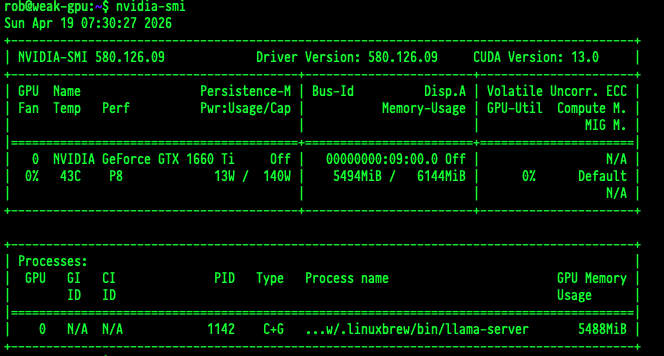
Once you have the drivers installed correctly, you can run nvidia-smi to ensure everything is working. If this doesn’t work you can not continue. Start over with a fresh install :)
Llama.cpp / Homebrew
Llama.cpp is a project that lets you run models saved in the GGUF format from the command line. Llama.cpp is a whole post unto itself, so for now lets just say this is the easiest way to start serving some models. The easiest way to get it installed is to use homebrew (yes, homebrew works on Linux as well as Mac)
You’ll need a few packages installed first because homebrew will compile llama for you - so you’ll need those tools:
sudo apt install -y build-essential procps curl file git
Then you can just follow the command from here
/bin/bash -c "$(curl -fsSL https://raw.githubusercontent.com/Homebrew/install/HEAD/install.sh)"
Once all that is installed, you should be able to verify it worked by running /home/linuxbrew/.linuxbrew/bin/llama-cli which should say you don’t have a model.
One of the great things about llama.cpp is, not only can it emulate an OpenAI endpoint, it can load models directly from huggingface (a website with all the models, think github for machine learning).
Loading Models / SystemCtl
So what you can do is make a little service that starts on system start, loads a model, and then emulates the OpenAI API endpoint (which has become a bit of a standard at this point). To do this create a file named /etc/systemd/system/llama.service (with sudo) and add the following contents:
[Unit]
Description=LLaMA Application
After=network.target

[Service]
ExecStart=/home/linuxbrew/.linuxbrew/bin/llama-server -hf lmstudio-community/Qwen3.5-9B-GGUF:Q4_K_M --host 0.0.0.0 --ctx-size 4096 --temp 1.0 --top-p 0.95 --top-k 64 --flash-attn on --timeout 1200 --kv-unified
Restart=always
User=<your_user>
Group=<your_group>

[Install]
WantedBy=multi-user.target
I don’t want to go into all the parameters for llama.cpp, you’ll have to do some digging yourself, but the important part is once you run sudo systemctl start llama.service, you should have a server running your model ready to go.
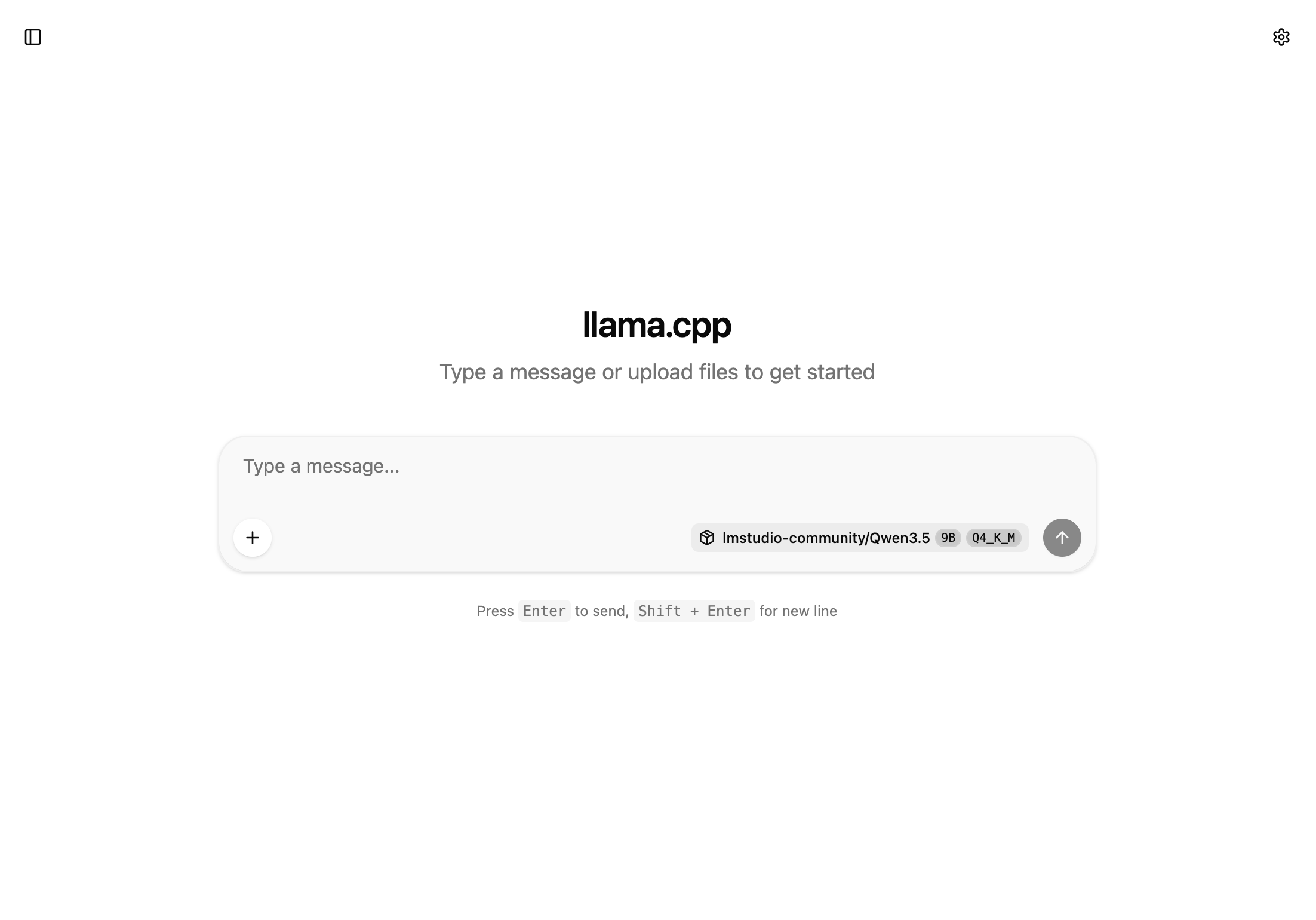
You can check it’s working by going to whatever IP address is for that box on port :8080 and you’ll see a simple chat UI (that works).
You can control up, down and status like:
sudo systemctl start llama.service
sudo systemctl status llama.service
sudo systemctl stop llama.service
You are now ready to do your experiments!
Bonus
Another useful tool, but not needed, is nvtop if you want to watch your GPU struggle.
sudo apt install -y nvtop
nvtop
2) Connecting with Strap
If you’re happy just chatting with the LLM the llama.cpp built in web site might be enough for you, but if you really want to play around the LLM needs ways to call tools locally - to run commands on your system (or on whatever system). That’s where a harness comes in.
OpenCode is a pretty popular one, but it’s kind of heavy. It runs a bunch of javascript, and the design around it is for large systems like Claude or OpenAI. They don’t seem budget conscious when it comes to tokens, and I just am not a fan of how the UI works. If you’re keen to try out mine, its about 11 megabytes and looks like this:
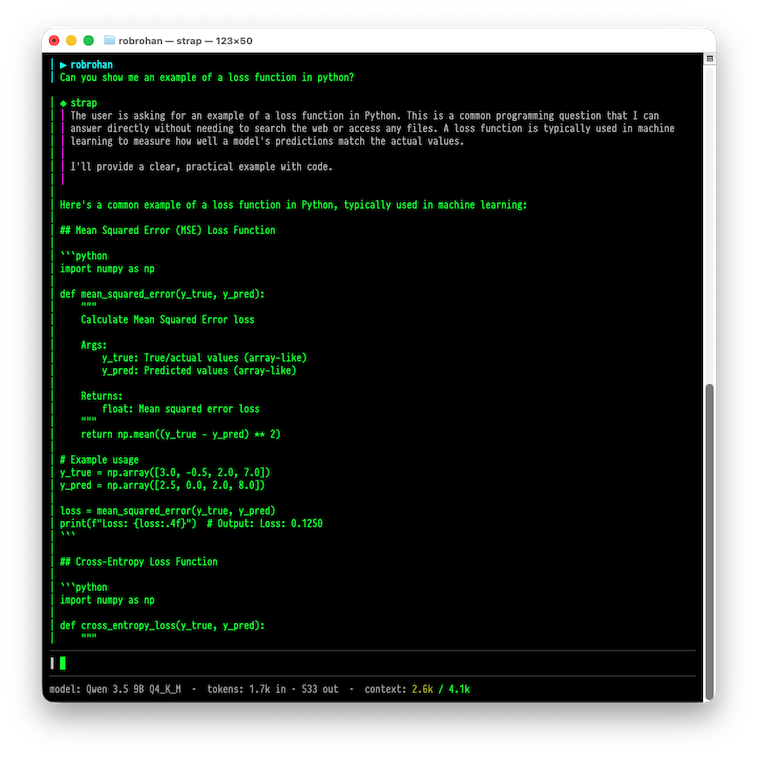
You can download it from the project landing page. It is not open source, but if you use the code STRAPBETA you can download it free.
Run the application in a terminal, and if you do the /config command in the application (/help if you want to know more), and that will load the configuration in your EDITOR.
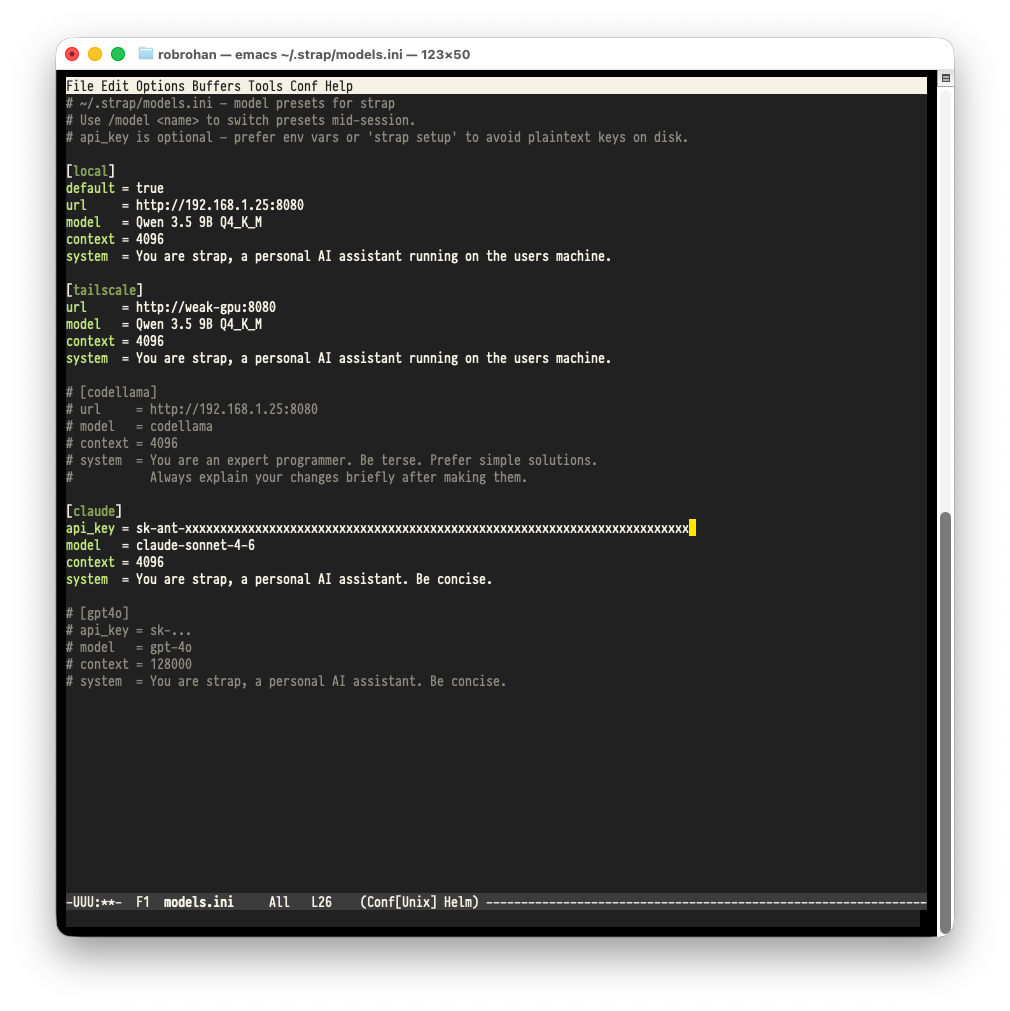
You can setup different model configurations there and change to them using the /model command.
The up and down arrow (as well as page up and page down) control the conversation history, and tab will show and hide the thinking sections of the conversation. If you ever want to save a conversation, use /edit to open the conversation in your EDITOR and you can save it from there if you wish.
3) Profit
Of course, if you have a more powerful model with a larger context window OpenCode should work just fine. You might be able to get it to work if you try, but as the other harness Pi says:
There are many coding agents, but this one is mine